> ## Documentation Index
> Fetch the complete documentation index at: https://docs.retailed.io/llms.txt
> Use this file to discover all available pages before exploring further.
# Create a product on WordPress
> Learn how to create a product on WordPress with the WooCommerce plugin.
This article will show you how to create a product on WordPress with the WooCommerce plugin.
Syncing your products with our API is done automatically with Retailed Business Suite. You don't need to do anything.
## Requirements
* WordPress
* WooCommerce Plugin
* [WooCommerce 360 Image Plugin](https://woocommerce.com/products/woocommerce-360-image/)
* [WooCommerce Google Product Feed Plugin](https://woocommerce.com/products/google-product-feed/)
## Product Creation
1. Log into your WordPress dashboard.
2. Click on **Products** > **Add new product** in the left sidebar.
3. Select "Variable Product" from the dropdown menu.
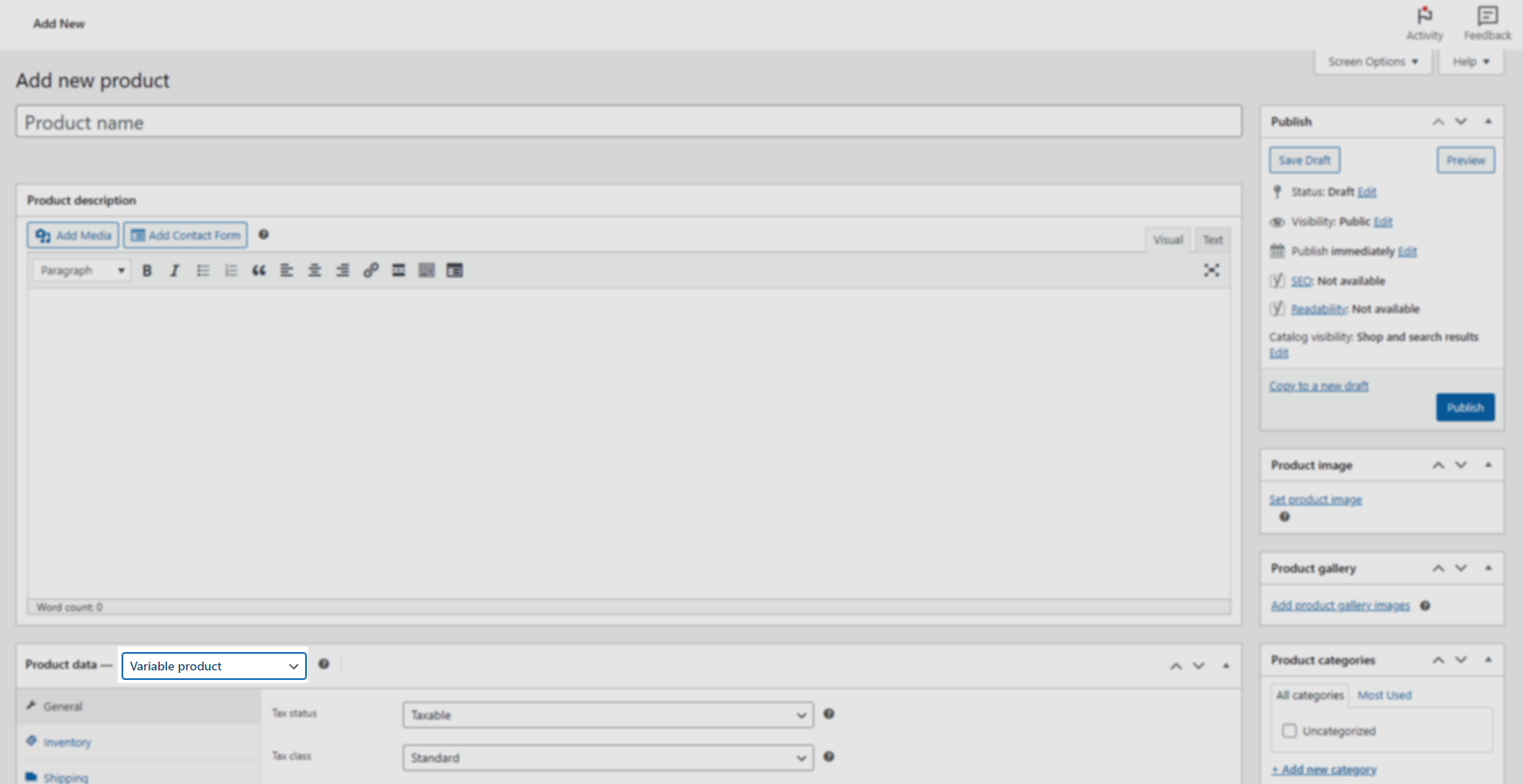 4. Add a product SKU
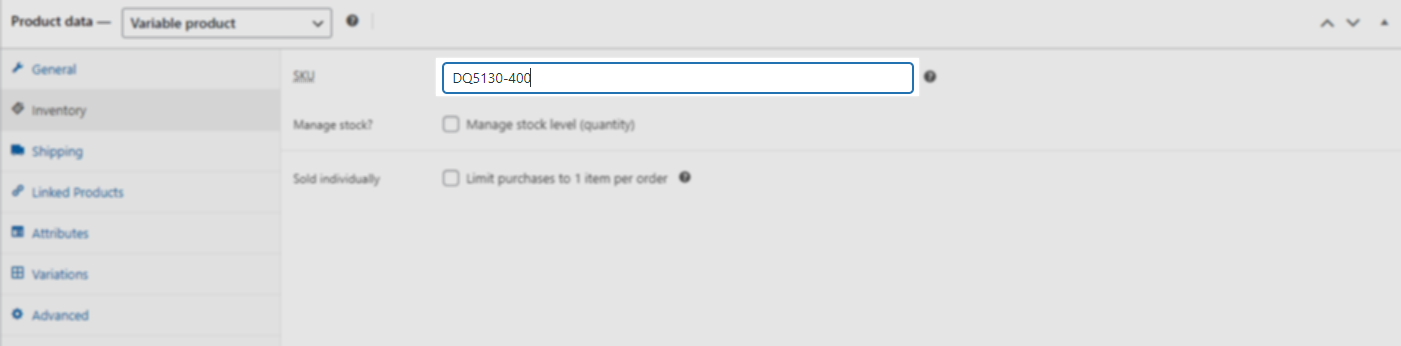 5. Add attribut "Size". Don't forget to click on "Used for variations" to make the attribut available for the variants.
If the API doesn't have a price, size will not be available for sale. But if in the future the API finds data, the price of the size will be updated and available for sale again).
5. Add attribut "Size". Don't forget to click on "Used for variations" to make the attribut available for the variants.
If the API doesn't have a price, size will not be available for sale. But if in the future the API finds data, the price of the size will be updated and available for sale again).
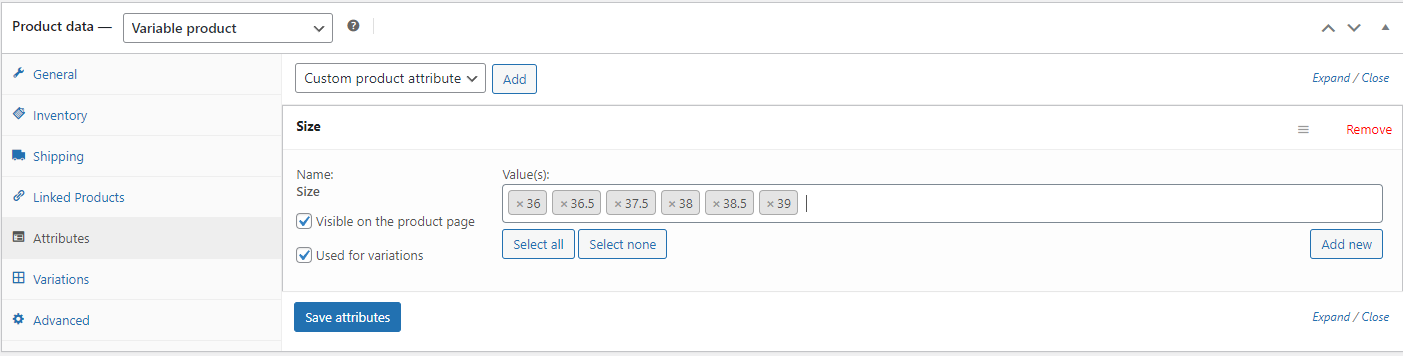 If you want to add a GS-W-PS-TD SKU on the product, you need to add a "Size" attribut with the value "SKU (xx)".
Example: "SKU (GS)" with the value "DQ5130-400".
Create an attribute and fill in the SKU. Our synchronization will compare the prices and select the lowest.
Don't check "Used for variations" for this attribute.
If you want to add a GS-W-PS-TD SKU on the product, you need to add a "Size" attribut with the value "SKU (xx)".
Example: "SKU (GS)" with the value "DQ5130-400".
Create an attribute and fill in the SKU. Our synchronization will compare the prices and select the lowest.
Don't check "Used for variations" for this attribute.
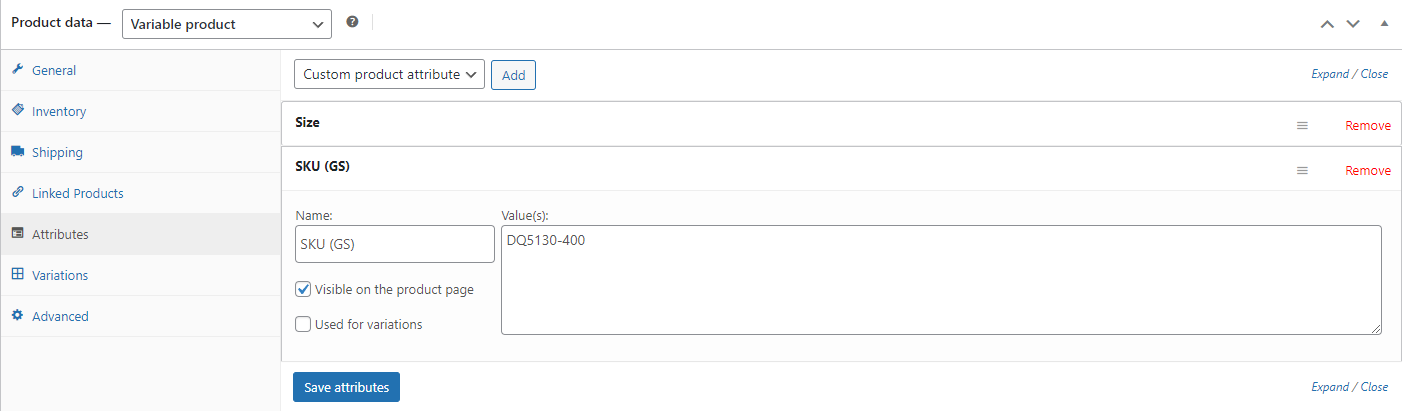 Name available :
* `SKU (GS)`
* `SKU (W)`
* `SKU (PS)`
* `SKU (TD)`
6. Click on "Save Attributes" to save the attributs.
7. Click on "Variations" in the left sidebar.
8. Click on "Create variations from all attributes" to create the variants.
Name available :
* `SKU (GS)`
* `SKU (W)`
* `SKU (PS)`
* `SKU (TD)`
6. Click on "Save Attributes" to save the attributs.
7. Click on "Variations" in the left sidebar.
8. Click on "Create variations from all attributes" to create the variants.
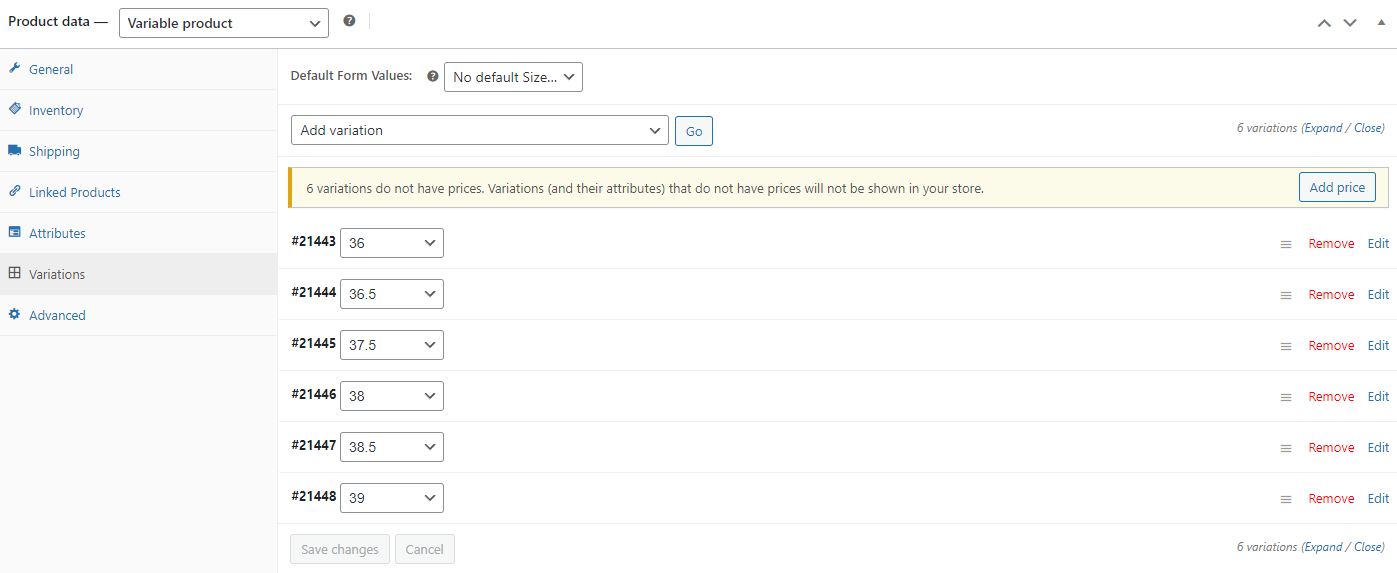
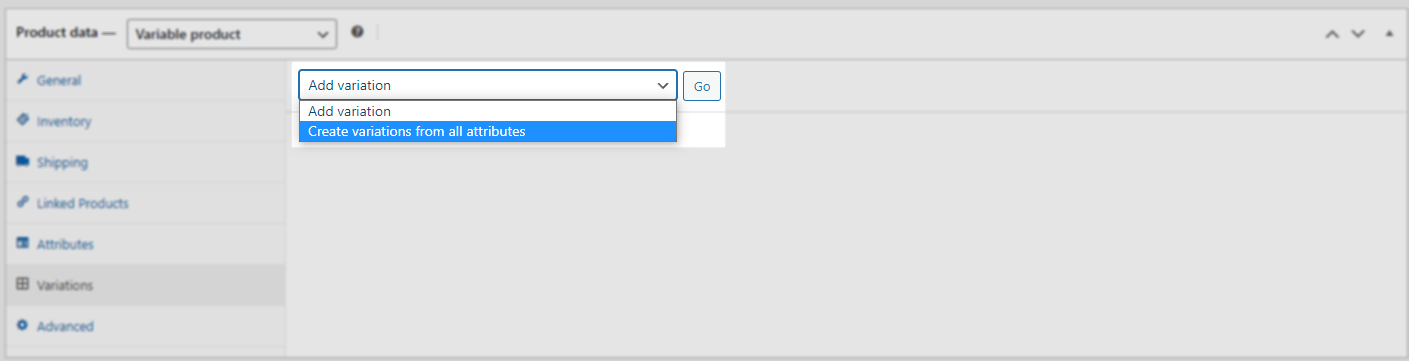 9. Click on "Save variations" to save the variants.
 10. Save the product by selecting "Save Draft". The product will not be visible on your store until you publish it.
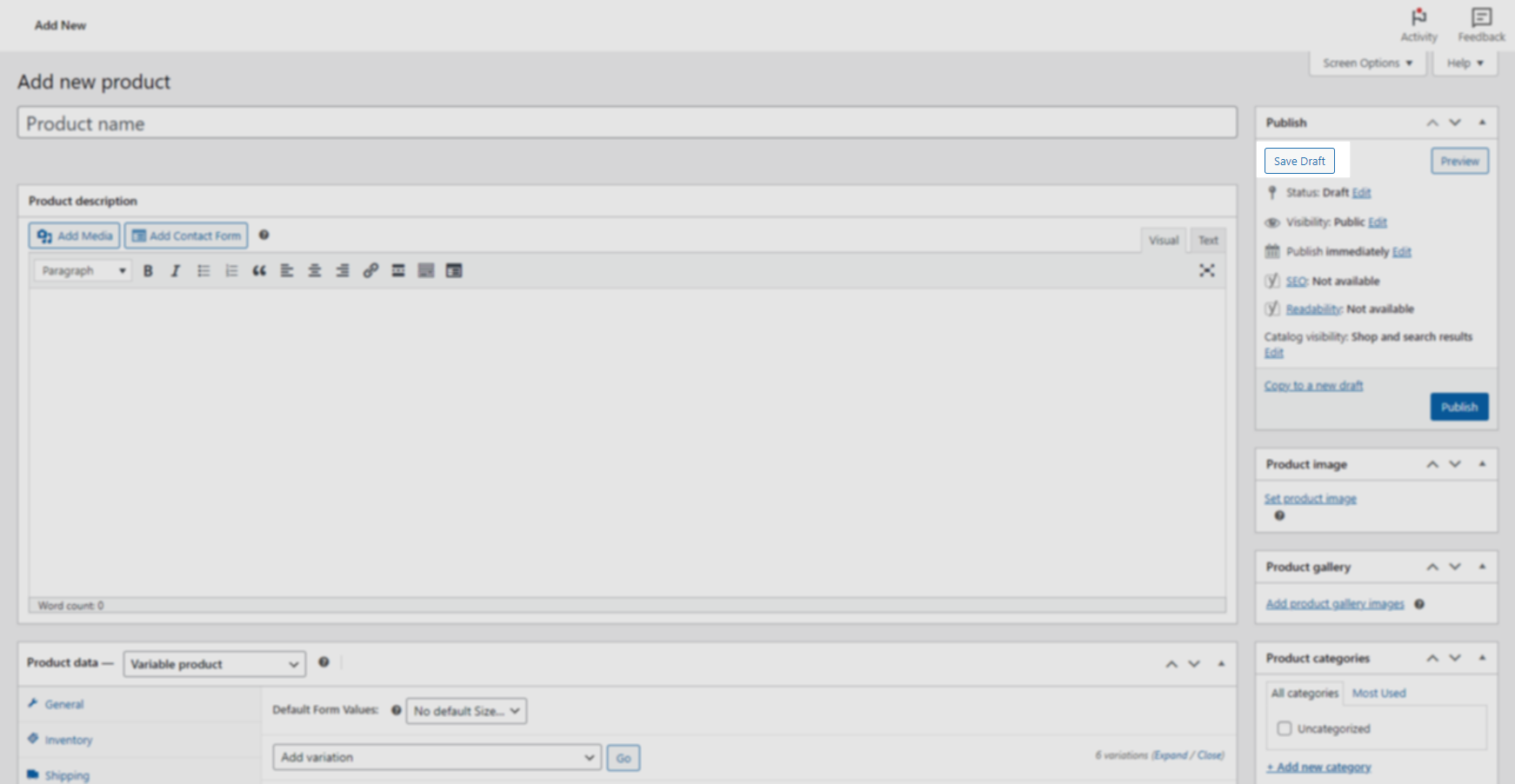 Once saved, the product will **be updated by our synchronization within \~5min**.
## Fields updated
* Name
* Description
* Price
* Images
* Stock (unlimited or not)
Once saved, the product will **be updated by our synchronization within \~5min**.
## Fields updated
* Name
* Description
* Price
* Images
* Stock (unlimited or not)